
Wordsmyth’s Wordlist Maker offers a great number of options for creating and customizing a wordlist. Before we go on to explain the workings of the tool in detail, here is an introductory summary for the first-time user.
Basic steps for making your wordlist
- Type or paste your own list of words into the textbox (to create a “Precise list”).
–or-
Paste a text of your choosing into the textbox (for “Automatic text analysis”). - Click on the icon in the blue bar below the textbox to go to Wordlist Maker Settings.
- In Settings, select “Precise list” under “Word selection default categories” if you typed or pasted in your own list of words for your wordlist.
–or–
If you pasted in a text to be analyzed by our system, simply accept the default setting of “Automatic text analysis.” Our system will then choose words from your pasted-in text to create a wordlist for you. See below for further instructions for choosing your text analysis settings. - Select your other preferences in Settings, such as which dictionary you’d like your definitions to come from.
- When you are finished with Settings, you can now click on “Preview and Save” to take a look at your wordlist.
- Look at the Preview Options to help you evaluate your list. If you want to improve your list, click on the Customization options. When you are happy with your wordlist, scroll down to the bottom of your list and click “Save wordlist.” The list will not be saved by having already clicked on “Preview and Save.” After the wordlist is saved, it will appear as the current list to be used in the Activities in the Vocabulary Center.
Making a wordlist: beyond the basics…
Wordlist Maker page
The six steps outlined above apply to you especially if you are a first-time user of the Wordlist Maker. Once you have established your settings, you may skip the Settings step in the future as long as you want to continue using the settings you have selected. If you don’t need to change your settings, you can go directly to “Preview and Save” to look at and evaluate your list, OR, if you are sure you will want to customize your list, you can click “Customize” immediately after typing or pasting in your words or text.
If you are typing or pasting in a list of words in the textbox, you don’t need to worry about commas or exact spacing. Just as long as you have at least one space (or one comma) between each word, the system will have no trouble discerning your list. However, if your precise list has individual items that consist of more than one word, such as “ocean floor” or “make do,” you will need to put these items in quotation marks so that the system will process them as single searchable units.
Wordlist Maker settings
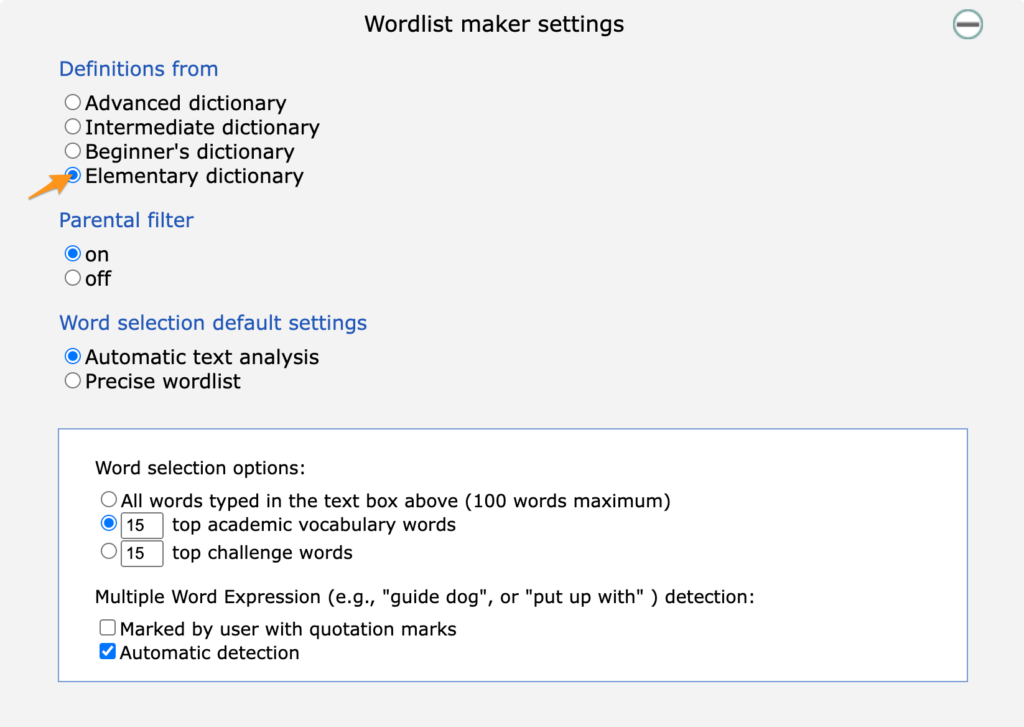
Explanation of settings
Definitions from…
Definitions of words for your wordlist are preset to come from the Advanced Dictionary, but here you can choose a lower-level dictionary that might suit you or your students better. If your students are children, the Elementary Dictionary is recommended as a starting point.
Parental filter
The default mode for the Wordlist Maker is with the Parental Filter ON. You can turn off the parental control here if you don’t feel any need to restrict potentially offensive language (in adult-level dictionaries).
Word selection default settings
- Automatic text analysis:
Wordsmyth’s Wordlist Maker is preset for automatic text analysis and automatic word extraction. In the settings, you will see that “Automatic text analysis” is the default setting. If this is unchanged, the system will extract fifteen words from your text to create a wordlist for you. Also preselected is the option of “Top academic vocabulary words.” If this setting is left unchanged, the fifteen chosen words will be based on words of the Wordsmyth Vocabulary Inventory (WVI), an extensive, leveled list of vocabulary words found to be important for understanding text in children’s literature as well as K-12 textbooks. Alternatively, you may choose the “Top Challenge” setting to create a list of low-frequency (i.e., “difficult”) words according to a standard frequency measure. Note also that you can adjust here the number of words for your wordlist, should you feel that fifteen is too many or too few. 100 words is the maximum that the system will extract for you.
With “Automatic text analysis” selected, the setting for “Automatic detection” of multiple-word expressions is also selected. This means that items consisting of more than one word, such as “tectonic plate” or “continental drift,” will be detected as single units in your text. Even if these expressions don’t end up being part of your wordlist through automatic text analysis, they can easily be added by you during customization, as long as they exist in our database. If they are in Wordsmyth, they will appear in the complete list of the items from the text you pasted in. (It is possible to add words to your list that do not exist in our dictionaries. See “Add/Select” below for instructions on how to add such items.)
- Precise wordlist:
If you have typed or pasted in a particular list of words you want to use in activities, be sure to select the “Precise wordlist” option in the settings. This setting allows you to create a list with precisely the words you entered into the input box (within a limit of 100 words).
Note that when you select “Precise wordlist,” the preset options below change along with it. The preset options apply only to automatic text analysis. Note also that while automatic text analysis is able to detect multiple word expressions, the “precise wordlist” setting asks the system to include in the wordlist each individual word you typed or pasted into the box. Consequently, it will not detect that “Abraham Lincoln,” for example, is a single unit. Again, in order to include these multi-word units in your wordlist, you will need to enclose them within quotation marks.
Preview and Save
When you have finished choosing your settings–whether you are using a precise list or automatic text analysis–click on “Preview and Save” to continue (or click on “Customize” if you want to skip the preview).
When you click Preview and Save, you will see the list that you or text analysis has created. The list will show each word of the list paired with a preselected definition from the dictionary that you opted for in the Wordlist Maker settings. If you are confident that you are happy with this list as it is, scroll down to the bottom of the list and click on Save Wordlist. Then you’re done! Your list can be immediately used in quizzes and other activities in the Vocabulary Center. If you’d like to rename your wordlist or attach a description before you go, click on the little marker icon next to the name at the top.
If you are not satisfied with what you see in the preview or if you’re just not sure, don’t worry! You have MANY options for editing and customizing. We’ve got you covered!
Preview Options
Before you make any decisions about saving your list, it’s a good idea to check out the preview options in the sidebar. These are tools that you can use to evaluate your wordlist. Seeing example sentences, for instance, can help you decide if the list is showing you the precise meaning that you want for each word. (Note that clicking or not clicking “Show examples” in the Preview Options does not affect the inclusion of example sentences in actual activities. In other words, you don’t need to click “Show examples” here to include examples in your activities. The examples you see in the preview are what will be used in activities if you save this particular wordlist–although you also have the option to select preferred examples or add examples of your own using customization.)
By the way, if you need more space to review your wordlist, you can close the sidebar by clicking the little arrow on the side (circled in red below).
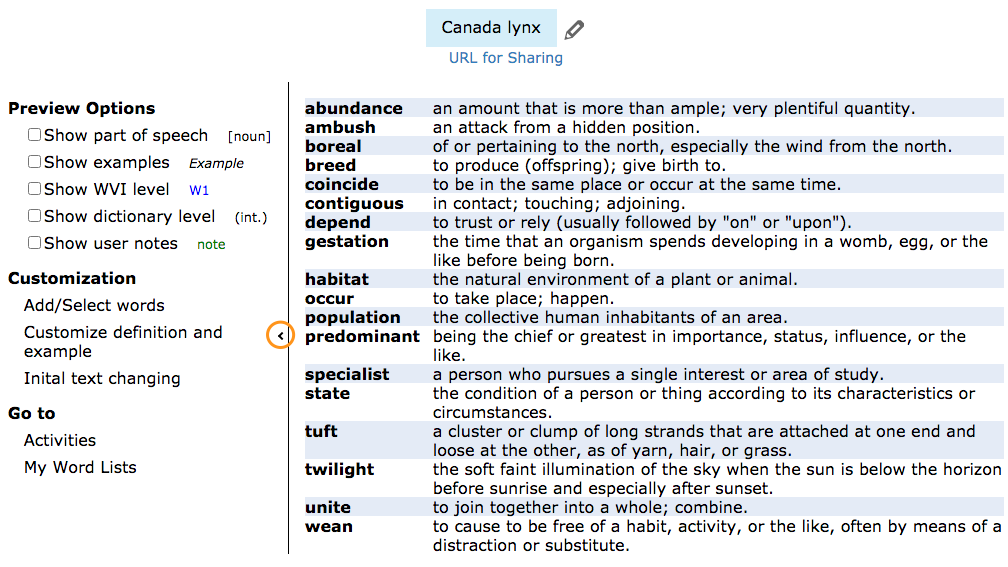
On the preview page, there are also links to proceed to editing and customization of your list. Again, if your list looks just right, scroll down to the bottom of your list and click on “Save wordlist.”
Customizing the wordlist
Add/Select words
If you click on”Add/Select words” in the sidebar, you will see the complete list of words from your precise list or pasted-in text, including any multiple-word expressions that were detected automatically or were enclosed within quotation marks in a precise list. Here you can adjust the word selection for your wordlist by checking or unchecking any of the boxes next to the words. In this list, you can also see the level of each word in the Wordsmyth Vocabulary Inventory (WVI), the word’s frequency in school texts–the lower the number, the higher the frequency–and how many times the word occurs in your text. This information may help you judge which words are most important to use in your final list.
The Add/Select words page also allows you to add new words that are not found in Wordsmyth dictionaries. No dictionary can cover all the words and phrases that are generated in this ever-changing world, especially those within specialized fields. If you have a specific word not currently found in our dictionary database, you can add it and write your own definition and example sentence.
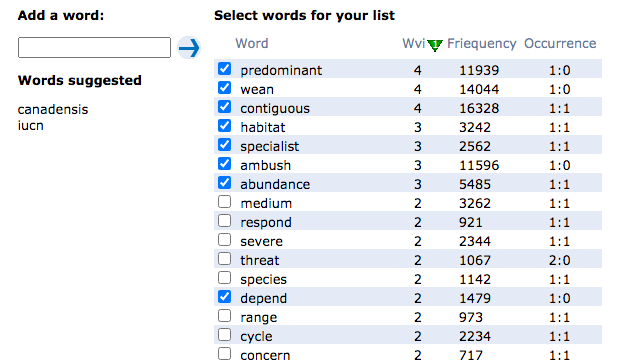
For your convenience, the system will display any words from your text that were not found in our database under the “Add a word” input box. (In the example above, the word Canadensis and the abbreviation IUCN were not found in Wordsmyth while creating the displayed wordlist.) If you’d like to add one of these “not found” words to your list, click on the word or type it into the input box. (If the item needs to be capitalized, you will need to type rather than click on the word. Also, since typos and misspellings can occur in any text, you may wish to double-check the spelling of your item before adding it to your list. The item could still potentially be in our database.)
Next, click on the arrow next to the input box to add your new word to the list in the display. Before one of these “not-found” words is really part of your wordlist, though, you will need to give it a part of speech and a definition. To do this, select “Customize definition and example” at the top of the page. Once on the customization page, choose a part of speech for your word. Once you’ve chosen a part of speech, add at least one definition. Now that the definition is added, the new word will become part of your wordlist.
In general, if you’d simply like to add more words to your wordlist than you had put in originally, it may be easier to click on “Go Back To Edit Input Text” rather than adding ordinary words using “Add/Select.”
Customize definition and example
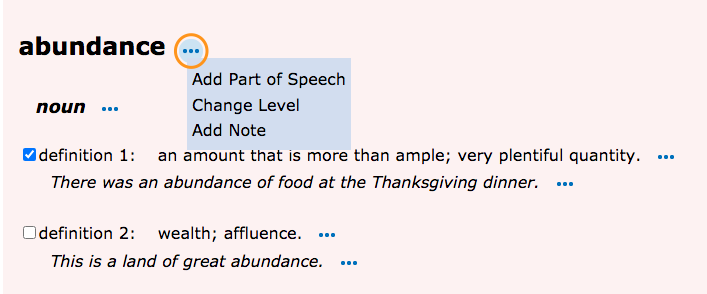
If you click on “customize definition and example” in the sidebar, you will see the words of your list with all their Wordsmyth definitions and example sentences. Note that many words will have multiple senses and multiple parts of speech. The most commonly used definitions will have been pre-selected for your use in activities. Here you can change or edit the definitions and examples, you can add another definition or example of your own, add a note in connection with the word, and more. Mouse over any option icon (…) to find out what you can do there.
Smooth connection with Activities
After you’ve finished any editing and you’ve saved your list, you can use it in any activities on the Wordsmyth Activities page in the Vocabulary Center. When you go to the Activities page, you will see that your new wordlist is already loaded for you.
At any time, you can also find your newly saved wordlist (and all of your wordslists) by going to the My Wordlists page under the My Wordsmyth menu, or by clicking on My Wordlists in the sidebar of the Activities page.
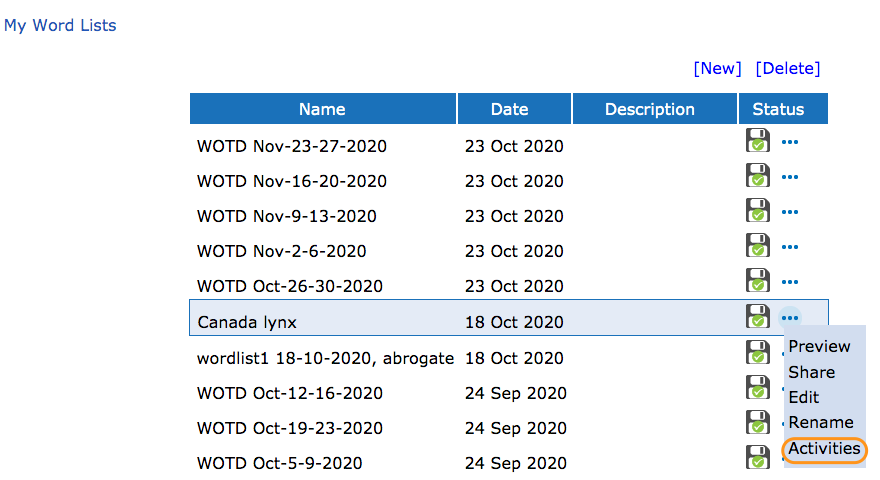
The My Wordlists page displays every list created by you with the Wordlist Maker whether it is “saved” or not—our system will hold onto a draft list, but the list can’t be used in Activities until it is saved by you. The column marked “Status” refers to whether a list is saved or unsaved. A green check on the file icon, shows that a list is saved, and a red dot with an exclamation mark shows it is not.
Next to each file icon on the My Wordlists page, you will see a “more options” icon (…). Clicking on this icon opens a dropdown menu of actions you can do with your wordlist. Your options are Preview, Share, Edit, and Rename. Even if you’ve previously saved a wordlist in this list, you can still customize it. If at this point you are happy with an unsaved list, you can save it now, or refine it and save it. If you are now ready to use a particular list in Activities, you can go straight to the Activities page from this menu. There you will find the saved wordlist loaded for you. (You can also go straight to the Activities page from a link located in the sidebar when you are in “Preview.”)
Share your lists with your students
If you are a teacher, you may be making wordlists for your students to study and learn. Sharing your lists with your students is easy. Just copy and paste the unique sharing URL of any list and send it to your students by email or any other means of communication that your school tools provide. The sharing URL appears in any preview page of a saved wordlist right under the name of the wordlist.
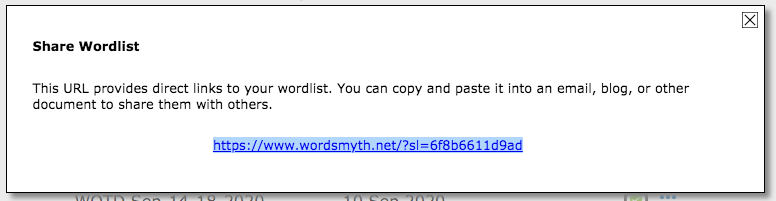
It is also found in the “Share” option in the dropdown menu in My Wordlists.
If you’d like to print out your wordlist, this can be done by using the Glossary Maker on the Activities page.
Below is the URL for the example wordlist used in this guide. It can help you get a feeling for how wordlist sharing works.
https://www.wordsmyth.net/?sl=6f8b6611d9ad
Clicking this URL will lead you to the Activities page with the wordlist preloaded and ready to use in any activities of your choice.
Check out Wordsmyth’s amazing Wordlist Maker and see for yourself what great lists you can make for your students or for yourself!